
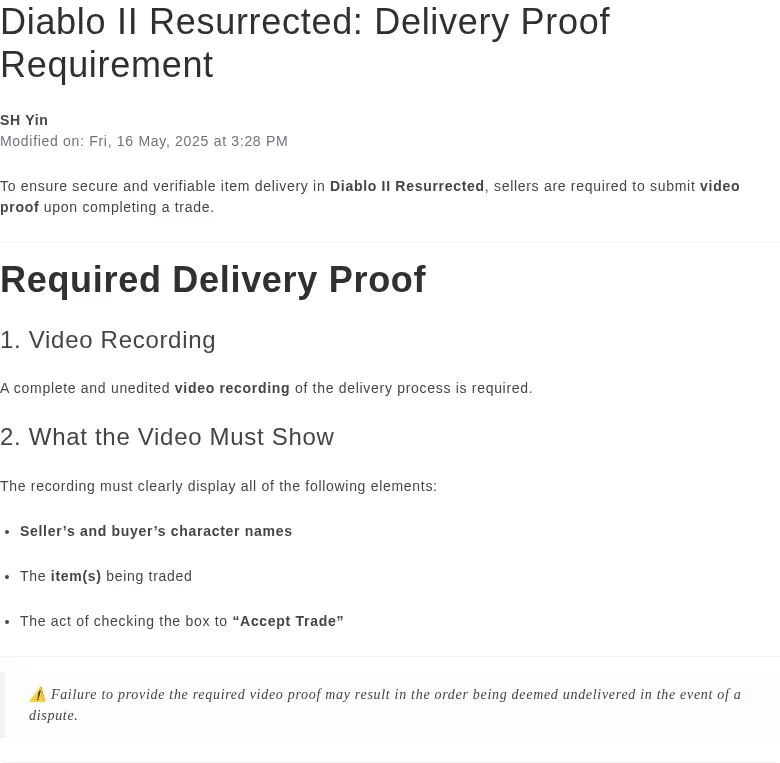
The screenshot below is G2G’s published game-specific requirement, including the three details the video must show.[2]
Can the right character join the handoff?
Join with the online character that is supposed to receive the item. Blizzard separates Online and Offline, Ladder and Non-Ladder, Hardcore, Expansion, and Non-Expansion play. Ladder is not available to offline characters, and offline characters cannot join friends.[1]
The listing must also match the recipient’s platform, game variant, Ladder season or Non-Ladder status, and Softcore or Hardcore environment. G2G lists these as separate D2R configuration fields, so a matching item name cannot make up for an incompatible mode.[4]
How to verify a trade-window delivery
- Enter the agreed online game with the intended recipient character.
- Match the character names to the order details. Keep coordination in G2G chat because the current seller rules require communication there rather than through in-game messages.[3]
- Wait until every item appears in the trade window. Compare the name, base or variant, visible properties or rolls, and the number of pieces with the order.
- If anything is removed, replaced, or unclear, pause and inspect the complete offer again.
- Select Accept Trade only when every visible detail matches. G2G’s D2R proof rule requires the character names, item, and Accept Trade action to appear in the delivery evidence.[2]
- Once the window closes, open the intended inventory and confirm the item and quantity again. G2G’s category instructions tell buyers to check the arrived item before marking delivery complete.[4]
The advantage is the pause before acceptance. You can compare the visible offer with the order first, then use the resulting inventory state as your final confirmation.
What changes with an in-game drop?
- Meet in the agreed online game with the correct recipient character and enough free inventory space for every item.
- Confirm that the expected character is present before the item is dropped.
- Use the ground label to identify the item you are approaching. Blizzard says an item’s name appears briefly when it drops and describes selecting and picking up ground loot.[1]
- Pick up the item and open the intended inventory. Compare its full name, base or variant, properties or rolls, and the number of pieces with the order.
- After pickup, confirm the full item details and quantity in the intended inventory. This establishes what your character holds; it does not replace G2G’s D2R-specific Accept Trade video requirement.[2]
G2G says missing required video proof may cause the order to be considered undelivered if a dispute occurs. That is a conditional evidence consequence, not an automatic buyer refund. Generic seller guidance on before-and-after images does not cancel the more specific D2R video rule.[2] [3]
Which delivery route gives you the clearer check?
| Decision point | Trade window | In-game drop |
|---|---|---|
| What you can check first | Inspect the offered item before selecting Accept Trade and compare every visible detail.[2] | Use the ground label to identify the item, then complete the full comparison after pickup.[1] |
| Your decisive action | Select Accept Trade after the offer matches. | Pick up the item, then inspect it in the intended inventory. |
| When the handoff is complete | The accepted item is in the intended inventory and matches the order. | The collected item is in the intended inventory and matches the order. |
| Evidence path | G2G’s D2R-specific rule calls for video showing the character names, item, and Accept Trade action.[2] | Drop-only footage cannot show the required Accept Trade action. Generic before-and-after screenshots are not a substitute for the D2R-specific rule.[2] |
| Best fit | The default when you want a clear checkpoint before accepting the item. | In-game pickup mechanics only; not an equivalent documented proof route for a G2G D2R order. |
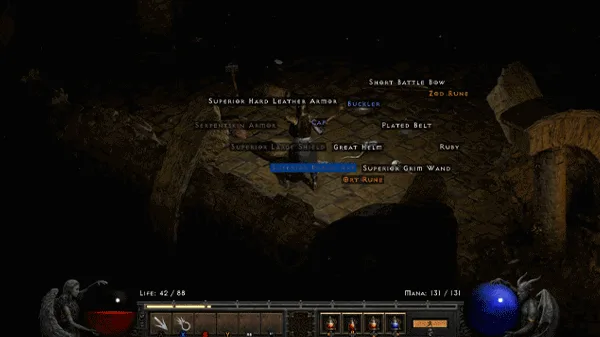
Blizzard’s 2021 console-loot demonstration shows ground item names including Zod Rune and Buckler. After pickup, open the inventory to inspect the complete item details; G2G’s delivery evidence uses the trade-window Accept Trade action.[1] [2]
What if the item or quantity is wrong?
If the mismatch appears in the trade window, stop before selecting Accept Trade. If you have already picked up a ground drop, do not mark the order delivered. Record the character names, visible item details, quantity, and recipient inventory, then report the mismatch through the order’s G2G chat. Current seller guidance requires transaction evidence to be uploaded to the order details page and directs communication to G2G chat.[3]
Blizzard’s EULA is a separate consideration. It prohibits gathering in-game currency, items, or resources for sale outside the platform or game and says Blizzard may suspend or revoke access for license violations.[5] Review the current terms before proceeding with a third-party item transaction.
Pick the route, then match the exact item
Arrange trade-window delivery for the D2R order, inspect the actual offer, and accept only when it matches. Then verify the inventory. If a proposed delivery uses only ground drops, ask to use the documented trade-window process before the handoff; an arrangement in chat alone does not provide the missing Accept Trade footage.[2]
If you have confirmed the platform, game variant, Ladder status, Softcore or Hardcore environment, exact item, and delivery route but still need the item, the D2R item category is an optional next step for comparing matching configurations.[4]
View Diablo II: Resurrected item options