
| What is missing? | What that points to | Start here |
|---|---|---|
| Pro on the second device | The CapCut account or plan scope | Use the original sign-in method; Standard benefits are mobile-only where offered.[1] [3] |
| The entire draft | A local project that has not reached Spaces | Upload the project from the original device, then open the same Space on PC.[5] [10] |
| Clips, audio or images inside the draft | Source media is unavailable | Keep the originals available and supply the missing media.[6] |
| One effect or template | A platform, region or version difference | Use an available equivalent on the destination device.[7] |
If Pro is missing, start with the purchasing account
Check which plan you have before troubleshooting a missing badge. Pro extends membership benefits across mobile, desktop and web. Standard, where offered, supports multiple logins but keeps its premium benefits in the mobile app. Missing Standard benefits on desktop are therefore different from a Pro account that is not being recognized.[1]
CapCut attaches Standard and Pro benefits to the original CapCut account, and those benefits cannot be transferred to another account.[2] A matching profile name or displayed email is not enough. CapCut warns that different authentication methods can create separate accounts even when the same email address appears.[3] [4]
- On the purchasing device, note the exact CapCut account and original login method, such as Google, TikTok, Facebook or email.[3]
- Match that purchase to its billing channel: Apple subscriptions on iOS, Google Play subscriptions on Android, or CapCut’s subscription or billing area for a PC or web purchase.[9]
- Use the original CapCut sign-in method on the second device and confirm that Pro appears. If it still shows Free, compare the receipt, billing account and CapCut identity before paying again.[2] [3]
Move the editable project from your phone to PC
Use a project you can recognize, such as “Product-demo-v03”. The goal is to open its editable timeline on the computer, with the source clips still available. An exported video is the finished picture and sound; it is not the project handoff.[5]
- On the phone, return to the project list. For the iPhone route shown in CapCut’s guide, open the three-dot menu beside the project and select Upload to space. Let the upload finish before switching devices.[10]
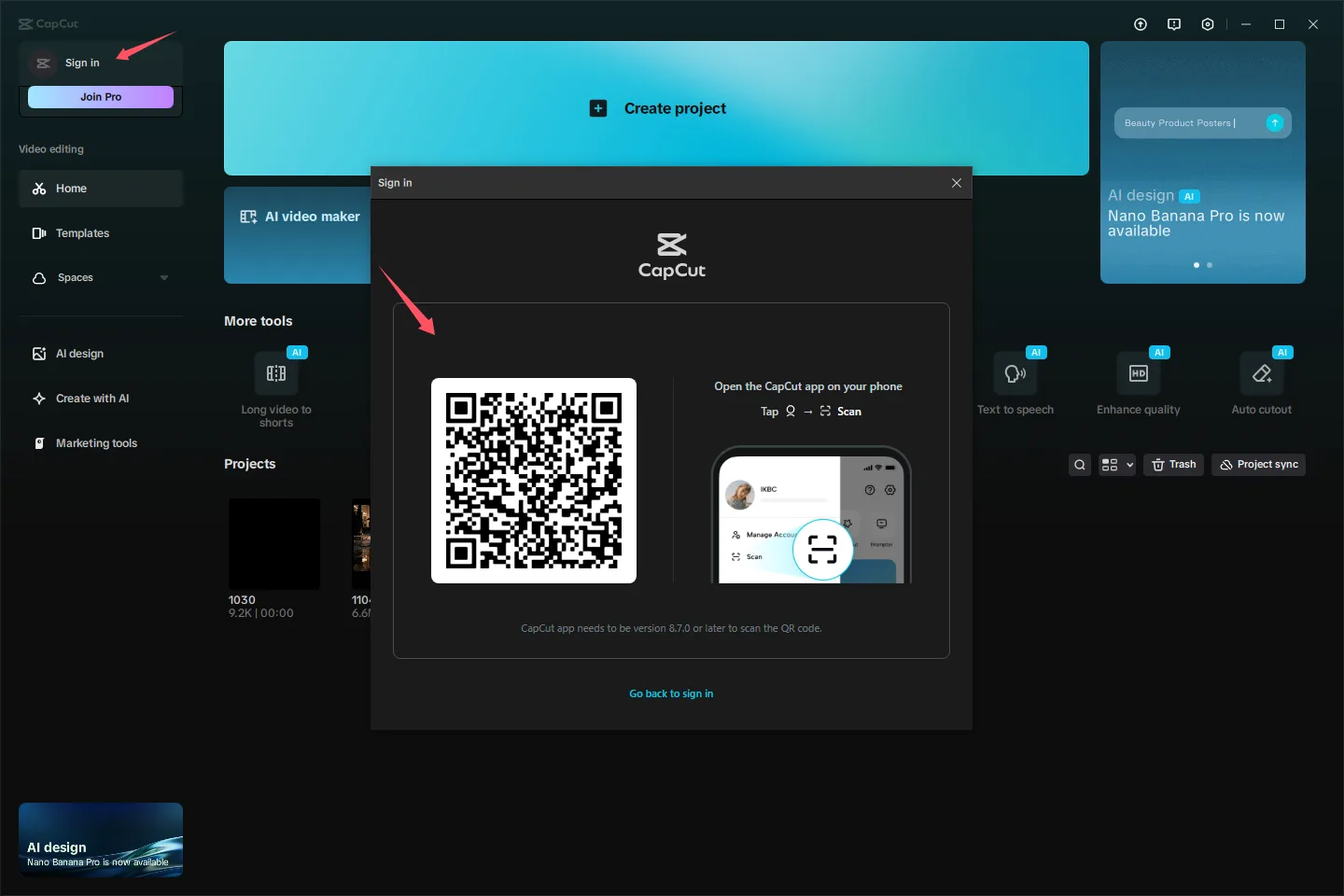
- On the computer, choose Sign in > QR code login. Scan with the already signed-in CapCut phone app and approve the login on the phone.[3]
- In the desktop app, select Spaces in the left sidebar and open the space containing that upload. Choose the uploaded project rather than a separate Local Projects copy.[11] [5]
- Open its timeline and play the section containing the clips, title and effect you need. If a clip is missing, supply its source media; if an effect is unavailable, use one supported on the computer.[6] [7]
- Continue editing that project. Export when you need the finished video; keep using the Spaces project when you want to continue editing across devices.[5]
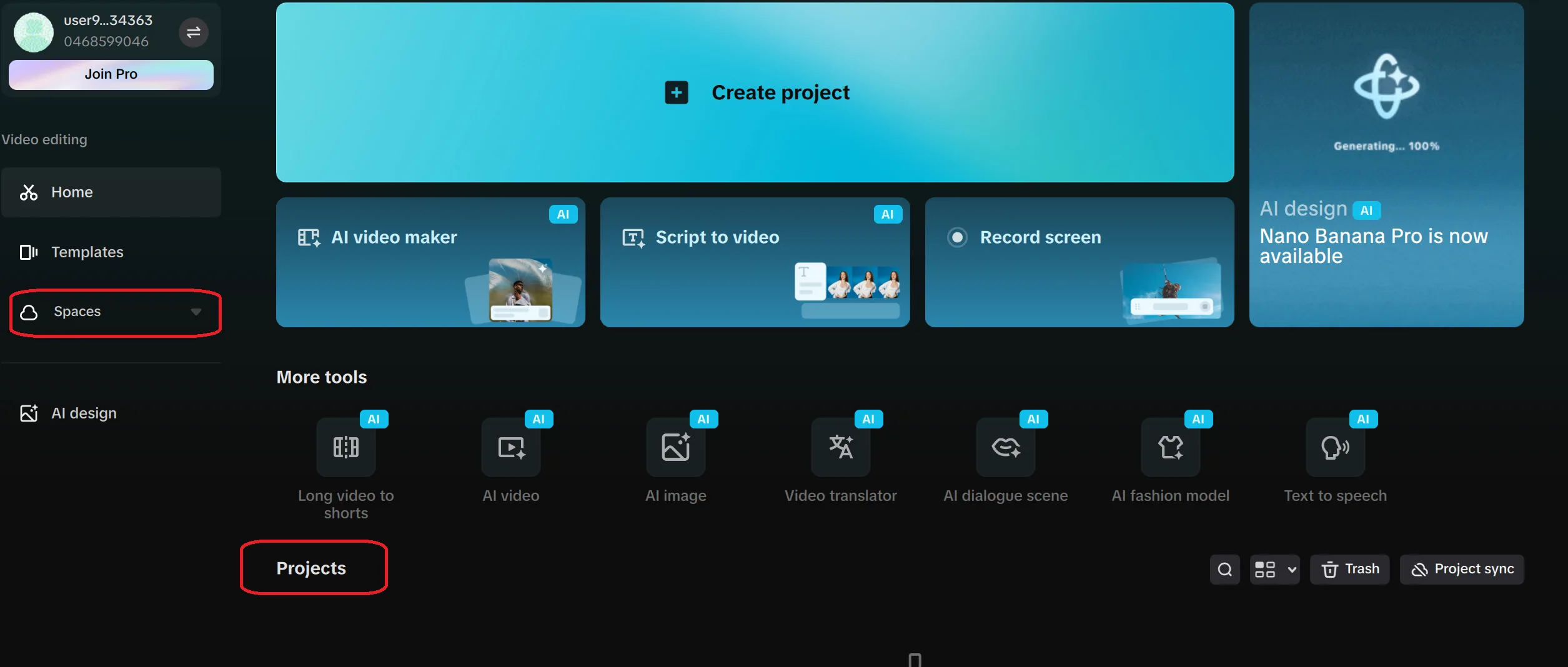
If Spaces is missing or will not open on PC, CapCut’s current help route is Settings > Version > Check for updates, then restart the app. Return to Spaces in the left sidebar under the same account.[11]
Do you need to subscribe?
An existing subscriber does not need a second Pro plan to add a supported device within the allowance.[1] For a first subscription, Pro is the plan whose membership benefits extend to phone, desktop and web; choose it for the paid editing work you intend to continue across those platforms.[1]
View CapCut Pro subscription optionsIf the timeline opens but something inside it is missing
Keep separate copies of the source clips, audio and images. CapCut distinguishes local device media from media uploaded for the web editor. A project thumbnail can appear even when some source files still need to be supplied.[6]
Effects and templates can vary by platform, region, app version, staged rollout, account eligibility and device capability.[7] Open every essential effect, font, template and editing tool on each device you plan to use. A Pro badge does not mean every device has the same tools.
Does the five-device limit show which devices are signed in?
The five-device allowance tells you the maximum, not which devices are signed in right now. If you see an unexpected device-limit message, note its exact wording and check that each device uses the original account and login method. Send the message to CapCut support if that account still cannot use another device.[1] [3]
Sharing with another person is a different setup
The five-device allowance is for one account, not five separate users.[1] For another editor, use a shared Space and the permissions for that person’s account. CapCut says some cross-region Cloud Space functions may be limited, so an invitation must work for both participants in their respective regions.[8]
When comparing a new subscription, check whether it provides access for your existing account or comes with a different login. Membership benefits cannot be moved between CapCut accounts.[2]
View CapCut Pro subscription optionsSources
- Can I Use CapCut Subscription Membership on Multiple Devices Simultaneously?
- Can I Transfer My CapCut Standard/Pro to Another Account?
- How to Sign In or Log In on Another Device with the Same Account
- Why Does the Same Email Log Me Into Different CapCut Accounts?
- Can I Modify a History Task?
- Why Are Assets Not Displayed in My Phone's Photo Album but Shown in the CapCut Album?
- Why Can Other Users Still Use Some Effects or Templates That I Can't See?
- Why Can't I Collaborate or Access a Shared Cloud Space?
- Why Do I Get the You're Currently Subscribed to This Message?
- CapCut official iPhone project Upload to space procedure
- CapCut desktop Cloud Space access and update procedure