
Can I use the same CapCut Pro account and project on different devices?
Find your setup below and check both the subscription and the project path. CapCut documented the five-device limit and same-account requirement on 3 October 2026.[1]
| Setup | What the subscription needs | How the project moves | What may not carry over | Ready when |
|---|---|---|---|---|
| Phone or tablet to another mobile device | Sign in to the same CapCut account and stay within the five-device limit.[1] | Use a cloud-accessible project and make the source media available. | Files stored only on the original device may be missing.[6] | Both devices show Pro, and a sample project opens with all required media. |
| Mobile to Windows or macOS | Use the same CapCut account on mobile and desktop.[1] | Upload the project to Spaces for cross-platform editing.[5] | Local media or a required effect or template may not carry over.[6] [7] | The desktop can open, edit, and export the representative project. |
| Desktop to web editor | Use the same account on desktop and the web.[1] | Open a cloud project and upload the media required by the browser.[5] [6] | A local-only draft or unavailable asset can interrupt the workflow.[5] [7] | Every essential project element works in the browser. |
| Old device to replacement device | Keep the original CapCut account and sign-in method.[2] [3] [4] | Finish cloud synchronization and retain separate copies of the source files. | A different authentication method can open a separate account even when the displayed email matches.[3] [4] | The replacement passes the project check before you retire the old device. |
| Collaborators in different regions | Confirm access for the owner and each collaborator; the owner’s Pro status does not establish another user’s access. | Test the actual Space invitation, project visibility, and synchronization route. | CapCut says some cross-region Cloud Space functions may be limited.[8] | The real participants can open and update the project from their respective regions. |
A qualifying personal setup does not need a separate Pro subscription for each device.[1] Keep the original CapCut identity; project storage and missing media are separate from membership recognition.[5] [6]
Make sure you’re using the account that owns Pro
CapCut attaches Standard and Pro benefits to the original CapCut account, and those benefits cannot be transferred to another account.[2] A matching profile name or displayed email is not enough. CapCut warns that different authentication methods can create separate accounts even when the same email address appears.[3] [4]
- On the purchasing device, note the exact CapCut account and whether you signed in through Google, TikTok, Facebook, email, or another method.
- Find the subscription in its original billing channel: Apple subscription settings for an iOS purchase, Google Play subscriptions for Android, or CapCut’s subscription or billing area for a PC or web purchase.[9]
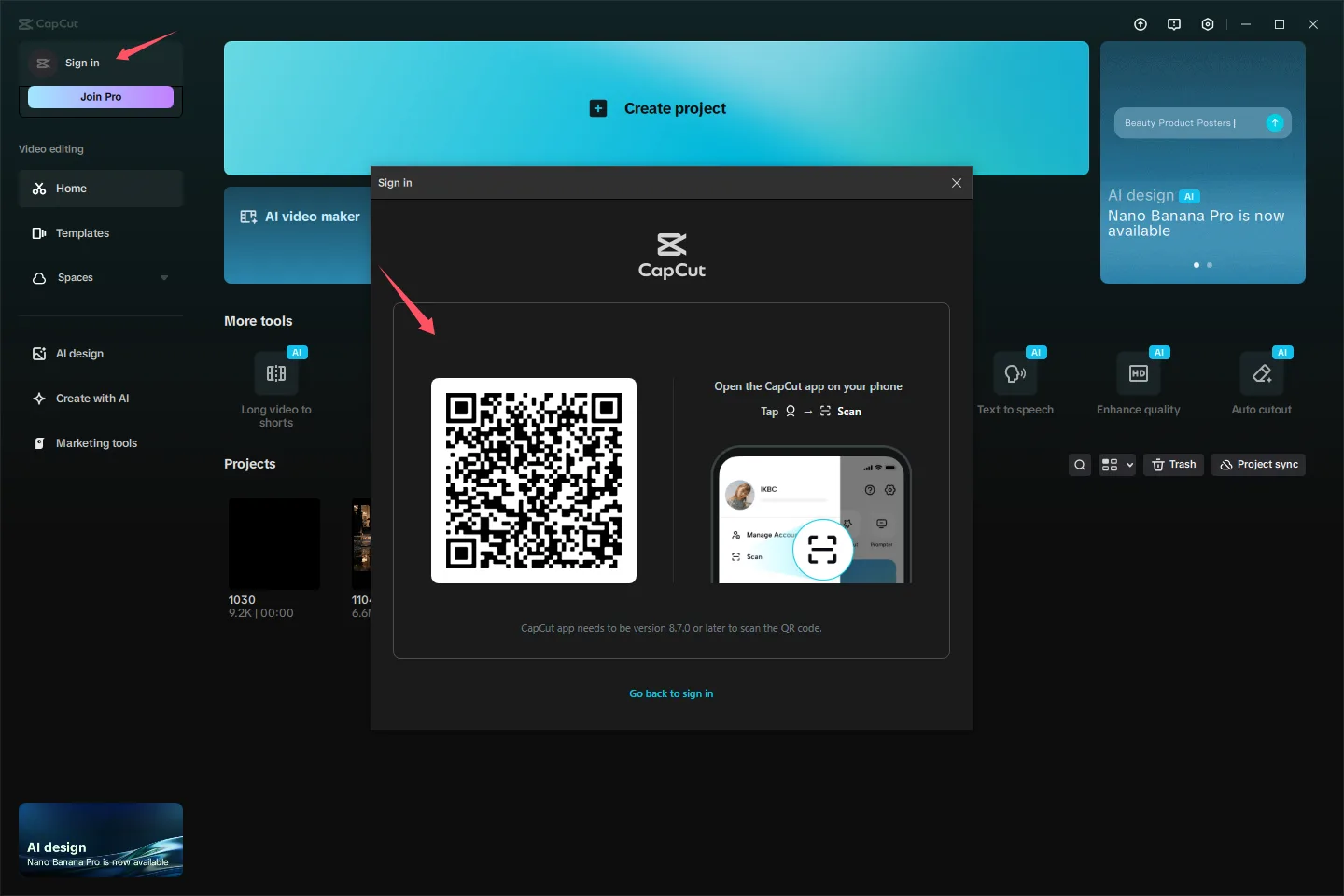
- Use the original CapCut authentication method on the second device. CapCut also documents signing in to desktop or web with the QR scanner on an already authenticated phone.[3]
- Confirm that Pro appears before troubleshooting drafts, media, effects, or templates.
- If the destination still shows Free, compare the receipt, billing account, and CapCut identity before paying again.
If a completed payment belongs to an account that still shows Free, start by checking the records tied to the purchase.
Test one small project before moving real work
- Create a short project with non-sensitive sample video, audio, and images.
- Add one example of every font, effect, template, editing function, and export setting your usual work requires.
- Upload the project to the Space you intend to use and let synchronization finish.[5]
- Open it on every destination device through the original CapCut account and authentication method.[2] [3]
- Check the timeline, source media, audio, fonts, effects, templates, and export settings.
- Make a reversible edit, reopen the project on the original device, and confirm that the change synchronized.
- Repeat the check after changing a device, platform, region, account, or app version because asset conditions can vary.[7]
What should you do after the test?
If Pro appears on every required device and the sample project completes the edits and export you need, keep using the same account and preserve copies of the source media. Keep the old device until its replacement opens the project and can access those files.
Do you need to subscribe?
If the original Pro account works on every device and the sample project completes the required export, keep that subscription. There is no extra device plan to buy for this setup.[1] If you have not subscribed yet, use the successful project test to decide whether the Pro tools you actually need justify a plan on that same account. A marketplace listing should describe that account and delivery arrangement clearly.
View CapCut Pro subscription optionsWhy is the same CapCut project missing on another device?
Check where the draft is stored. CapCut distinguishes local desktop projects from cloud projects and directs users to upload projects to Spaces for cross-platform editing.[5] Signing in on another device does not turn a draft stored on one computer into a cloud project.
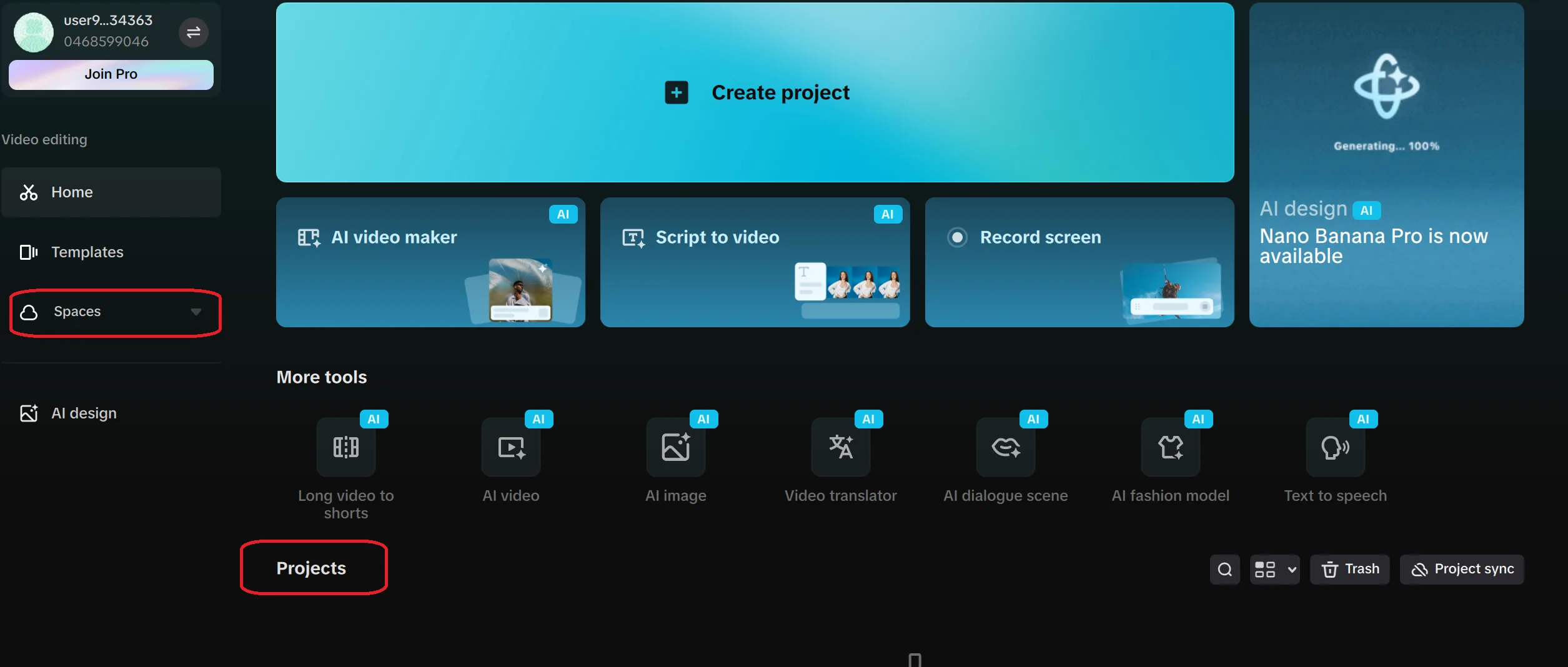
If the project opens without its clips, audio, or images, check those files separately. CapCut says mobile media remains in device storage, while media needed in the web editor must be uploaded or obtained through an available cloud-storage path.[6] Keep separate copies of important source files; project visibility alone does not prove that the media moved.
Why is an effect or template missing?
Effects and templates can vary by platform, region, app version, staged rollout, account eligibility, and device capability.[7] Open every essential effect, font, template, and editing function on each device you plan to use. The Pro badge does not establish feature parity.
If that missing feature determines whether the subscription is worthwhile, compare the plans against the work you actually do.
- If Pro is missing, resolve the receipt and original account identity before paying again. Membership benefits stay with the original CapCut account.[2]
- For a missing project or asset, check Spaces synchronization, source-file access and the destination’s required effect or export support.[5] [6] [7]
- For cross-region collaboration, verify that each participant can open and update the shared Space.[8]
- If client or employer requirements prohibit cloud transfer, keep the workflow local or use an editor that supports the required local workflow.
For a new subscriber choosing a billing period, use the Pro purchase screen for that account and region. Preserve the tested sign-in method and Space rather than buying a replacement identity: CapCut says membership benefits cannot be transferred between accounts.[2]
View CapCut Pro subscription optionsSources
- Can I Use CapCut Subscription Membership on Multiple Devices Simultaneously?
- Can I Transfer My CapCut Standard/Pro to Another Account?
- How to Sign In or Log In on Another Device with the Same Account
- Why Does the Same Email Log Me Into Different CapCut Accounts?
- Can I Modify a History Task?
- Why Are Assets Not Displayed in My Phone's Photo Album but Shown in the CapCut Album?
- Why Can Other Users Still Use Some Effects or Templates That I Can't See?
- Why Can't I Collaborate or Access a Shared Cloud Space?
- Why Do I Get the You're Currently Subscribed to This Message?