
Decide what the other person needs to do
| Their job | Use this | What to agree first |
|---|---|---|
| Change the timeline | Shared space and editing-permission handoff | Who edits first, and which changes belong to the next editor |
| Approve the cut | Share for review | Who may open the link and where to leave feedback |
| Receive the finished video | Final export or presentation link | Delivery filename, aspect ratio and approved version |
Think of a short product video: you assemble the clips, a colleague fixes the title and closing line, and the client approves the result. Those are three different jobs. Give the colleague control of the project when your assembly is ready; give the client a review copy. This keeps a request to “change the ending” attached to one agreed version.
Invite their account to the right space
In the web workspace, use Create new space or open the space you intend to use. Invite members lets you send an email invitation or copy an invitation link. Assign access to fit their job.[1]
Name the project before handing it over, and place the footage and draft in the intended shared space. For example, use “Product-demo-v03-title-pass”. Include that exact name and the next change in your invitation message so the other editor knows which project to open.
For newly created team spaces, CapCut currently describes free two-person collaboration including the owner; larger teams need a paid Teams plan. Check the space you are using before inviting a larger group.[3]
Pass editing control when the first edit is ready
- Finish the agreed editing pass and tell the next editor which project and version to open.
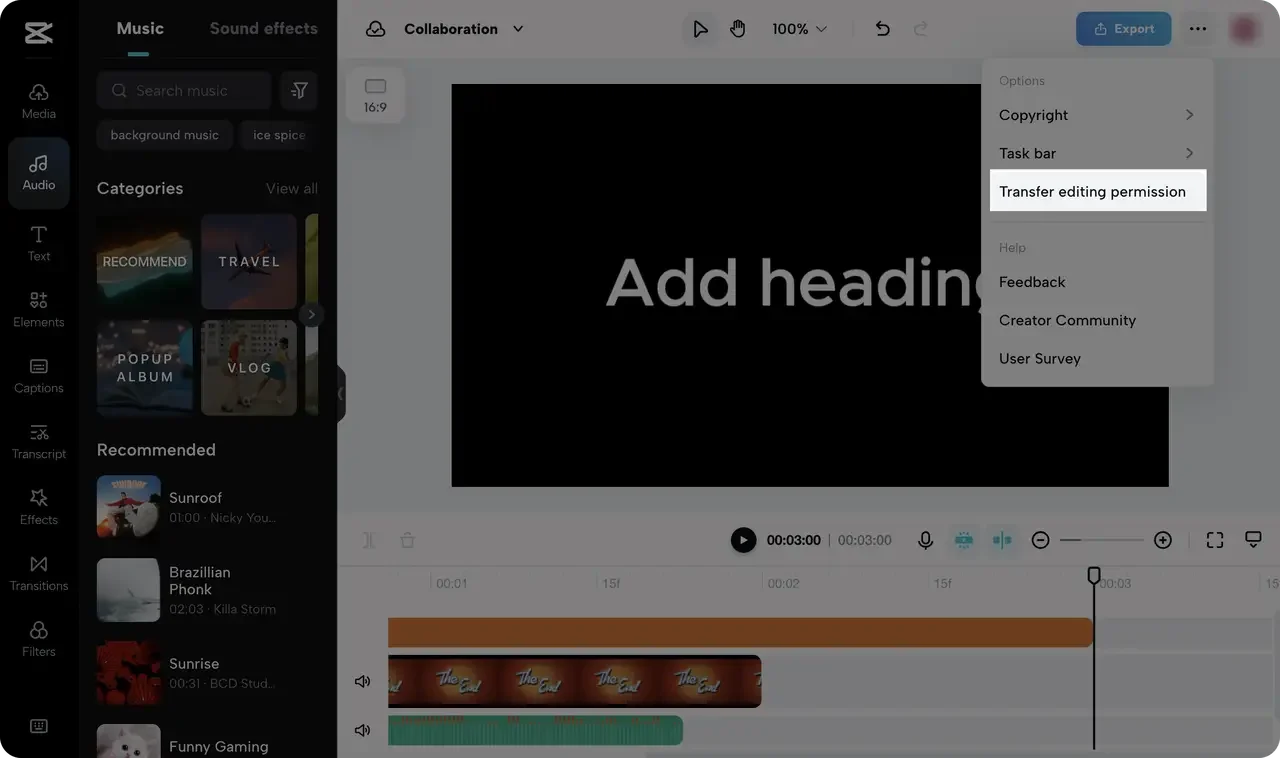
- In the editor, open the three-dot menu and choose Transfer editing permission. Select the next space member and confirm.[1]
- Ask the next editor to take over the agreed changes. CapCut describes the previous editor becoming a viewer after the transfer; only one person edits at a time.[2]
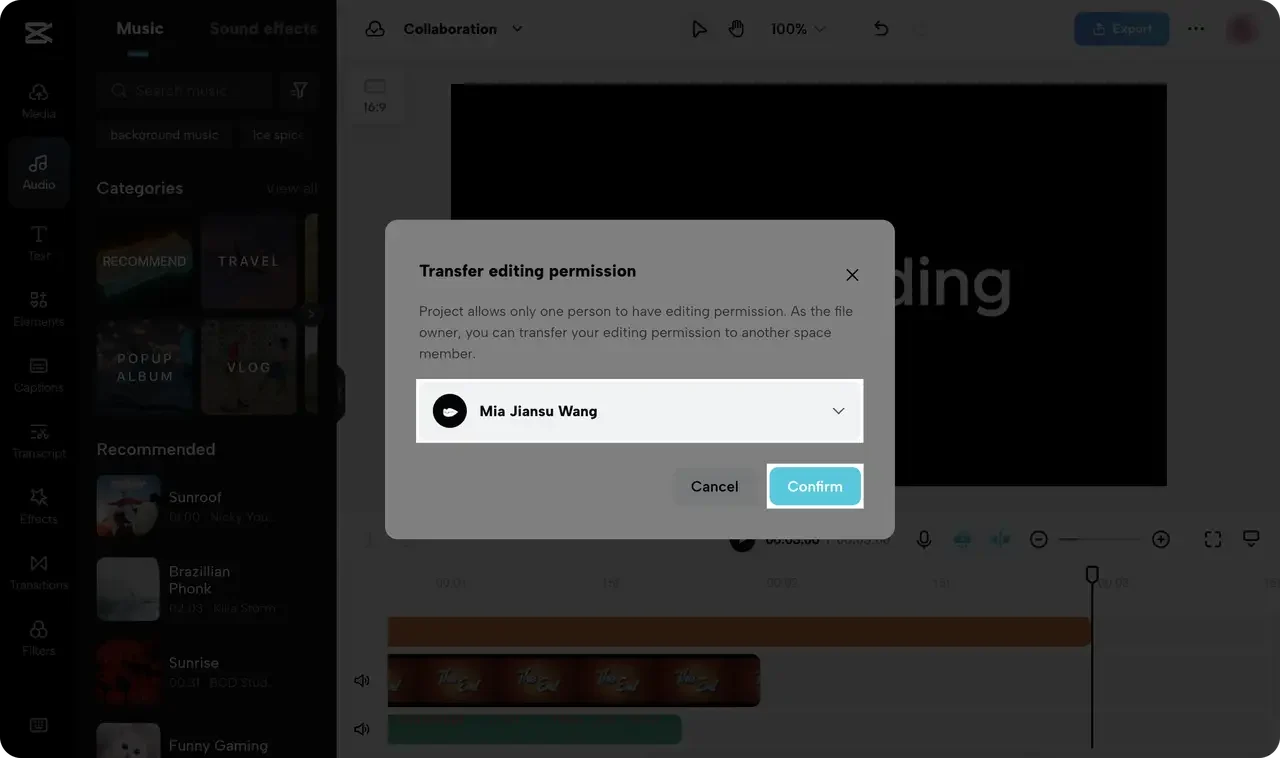
The screenshots come from CapCut’s official collaboration guide. The highlighted menu and confirmation dialog show the handoff control; they are useful reference points when locating it in the web editor.[1]
Give each editor a short, specific change list: replace the title at 00:03, shorten the pause at 00:12, then return control for the final export. Use those example timecodes as a format for your own change list. Focused requests keep two people from independently “fixing everything” and make each change easier to review.
Send a review copy that asks for a decision
For feedback, use Export > Share for review. CapCut documents visibility for everyone with the link or members of the space. Review sharing is not the same as transferring the editable project.[1]
CapCut’s online sharing tools support comments tied to a position in the video. Ask reviewers to identify the moment and the desired change, so “the intro feels slow” becomes “00:03: start on the product shot”. Choose recipients and link visibility for the intended audience before sharing.[4]
Send one review request at a time: “Please approve the wording and pacing in v03; reply with the timecode for any change.” When the cut is approved, record the delivery filename in your notes. This gives the editor a clear finish line and the reviewer something concrete to approve.
Use the handoff worksheet for the next project
The kit contains a handoff checklist and a review-notes CSV for your spreadsheet app. Replace the two illustrative review rows with your own requests, name the current and next editor, and record the approved delivery version. These original planning forms help you record the handoff and review decisions.
Pay for the editing tools your project needs
Basic collaboration and Pro editing benefits are different purchases. A paid individual account does not by itself add seats to a team. CapCut says Teams benefits require a purchased, activated team subscription and accepted invitations under the right accounts.[3] [5]
If the agreed client cut uses a Pro-labelled effect, transition or template, choose Pro for that editing work to keep the resource in the export. CapCut’s collaboration guide says to upgrade or remove Pro resources before export.[1] A premium transition may be part of the visual style you agreed on; it does not change how the second editor joins. Keep a free-only project free and choose the collaboration arrangement separately.
Compare individual Pro account purchase options for the editor who needs those tools; a marketplace account is not a Teams seat. Keep control of the login, recovery method and subscription details that the project will rely on.
Compare CapCut Pro account purchase optionsFor a two-person edit, start with one named project, one current editor and one next task. Transfer control when that task is ready, collect feedback through a review copy, and finish with an explicitly approved version.
Sources
- CapCut official web collaboration workflow
- CapCut project collaboration and editing-permission transfer
- CapCut team collaboration feature
- CapCut online video sharing and timestamped feedback
- CapCut Teams benefits for invited members
- Considered Choice original project handoff and review-notes worksheets (CC0 ZIP)